
Get started
Each member links their own Teams account; nobody can do it for them. You need Nilear Live access: an Admin gives it on the Members page in Nilear’s account area (my.nilear.com, Account, Members), where a Nilear Live level of Read/Write or above turns it on. Managers and Admins always have it.
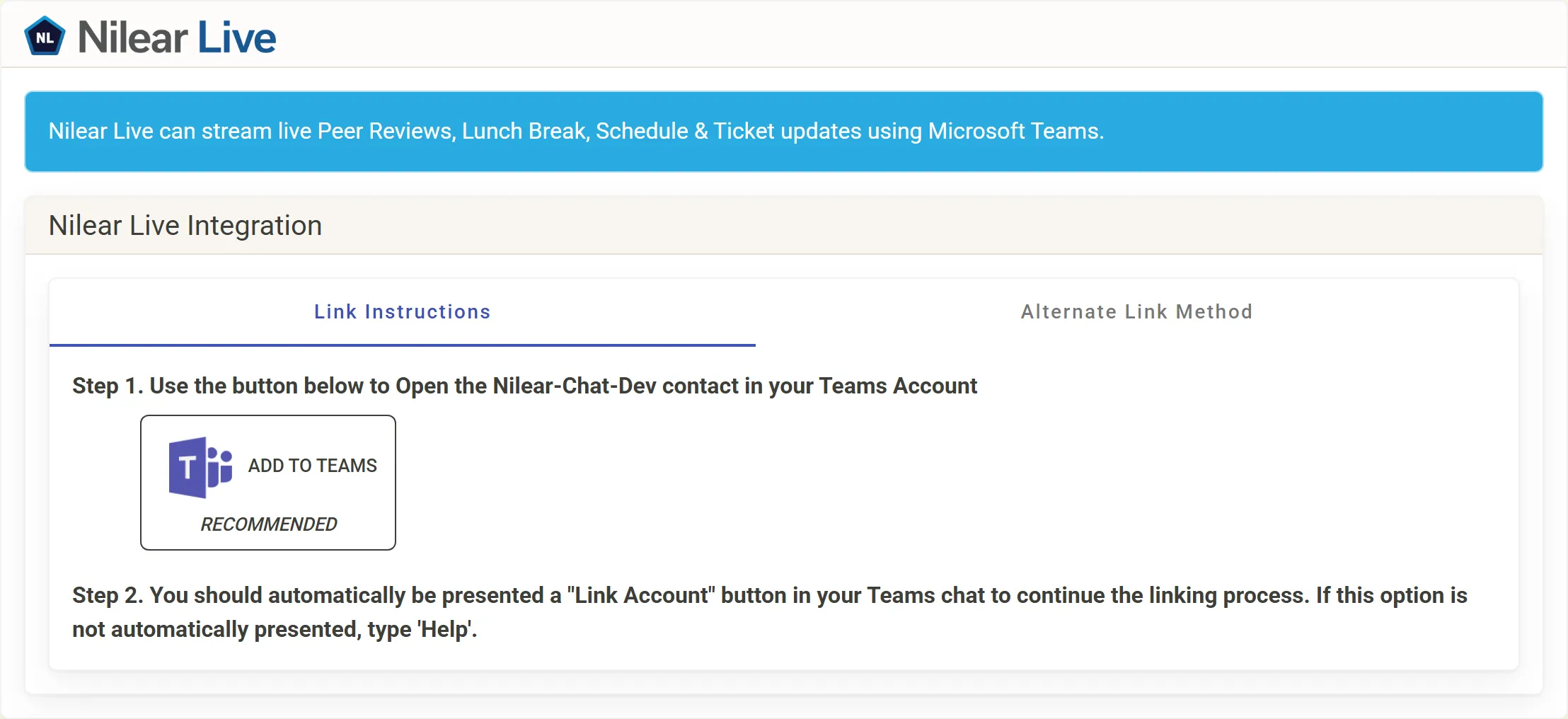
Sign in at app.nilear.com and click Open on the Nilear Live card on the home page. The Nilear Live page opens on Nilear Live Integration.
-
Click Add to Teams. Microsoft Teams opens Nilear-Chat, Nilear’s app in the Teams store; add it.
-
In your chat with Nilear-Chat, click Link Account. If it does not appear, type
Help, orLink. -
Nilear opens and asks you to confirm: Link with Nilear-Chat names your Nilear account’s email. Click Complete Link.
-
Click Add to Teams and add Nilear-Chat, as above.
-
On the Alternate Link Method tab, click the Link command shown under Step 2 to copy it. It is
Linkfollowed by a code unique to you. -
Paste it into your Nilear-Chat conversation and send it. Nilear-Chat replies that you have linked your account, with your Nilear email.
Once you are linked, the Nilear Live page shows Nilear Live Settings. A new link starts with:
- ticket updates on, for new tickets, customer replies and In Progress changes, but not your staff’s notes;
- peer reviews on;
- schedule updates and lunch and AFK updates off.
Change them on the page: see Choose your ticket updates and Settings.
Try it
Section titled “Try it”Send Help to Nilear-Chat for the list of commands, or Settings for your basic settings as a card. See
Commands.