
Get started
These steps take a ConnectWise PSA from no board switched on to the first automated ticket on one board. Every step needs the Admin access level: the Ticket Automation pages are for administrators only, and anyone else is turned away. Sign in at my.nilear.com and open Ticket Automation. Its sidebar lists Boards, Global Instructions, Support Advisor and OpenAI Key, and it opens on Boards.
-
Add your OpenAI key (Admin). Open the OpenAI Key page, paste your company’s key and click Verify and save. Ticket Automation runs on it and is billed to your OpenAI account. The page explains how to create a key that suits it. Until a working key is added, the Boards page says No board’s automations will run until a working OpenAI key is added. See Add your OpenAI key.
-
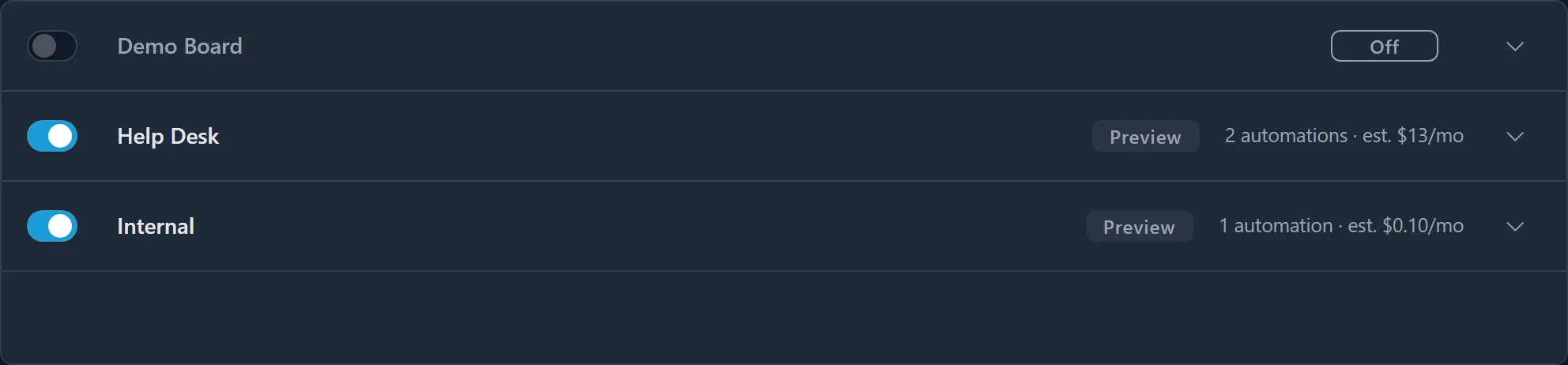
Find the board (Admin). Open Boards. Every service board in your ConnectWise is listed, one row each; project boards are never offered. A board created in ConnectWise moments ago appears after you click the refresh button, Re-read boards from your PSA, in the page header.
-
Expand the board and leave it in Preview (Admin). Click the board’s name. Under When automation changes a new ticket, Preview is selected: automation writes an internal note of what it would have changed, and changes nothing on the ticket. Keep it while you judge the results. See Choose Preview or Live.

-
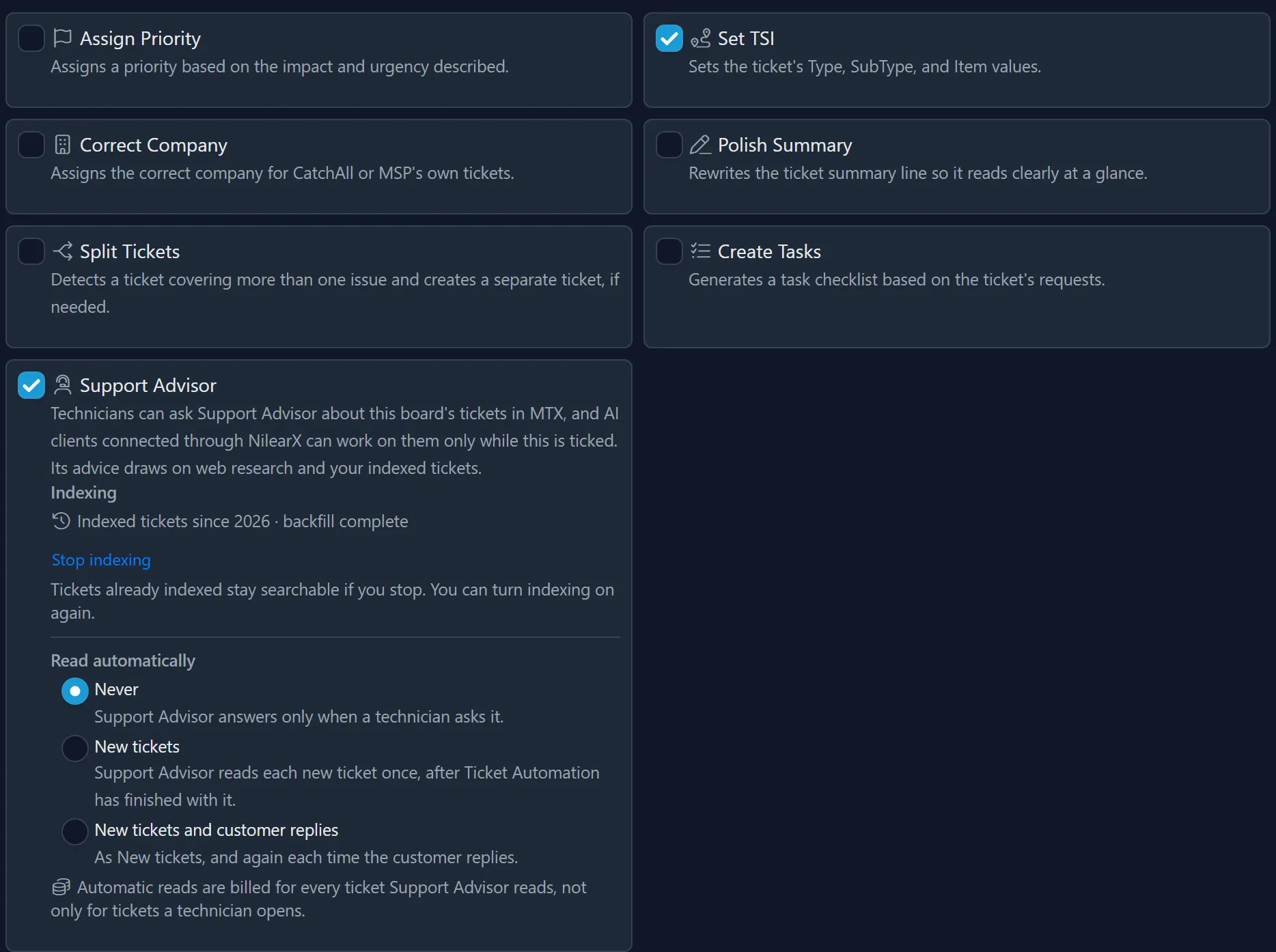
Tick the automations you want (Admin). Each tick is saved at once. A good first choice is Set TSI or Assign Priority, whose results are easy to check. Split Tickets first checks that your ConnectWise API member may add attachments (Split Tickets). Each automation’s page says what it changes and when it does nothing.
-
Read the board’s estimated cost (Admin). Below the automations, Estimated monthly OpenAI cost shows what the ticked automations would cost on the tickets entered on this board in the last 30 days. It changes as you tick and untick. See Read a board’s estimated cost.
-
Write instructions, if you need them (Admin). Each ticked automation gets a Board Instructions field, and Global Instructions holds instructions for every board. Leave them empty to start with: the automations work without them. See Write instructions.
-
Switch the board on (Admin). Turn on the switch at the left of the board’s row. The row then shows Preview and its number of automations. The change applies at once, with a check mark when it is saved.
-
Wait for a new ticket. Ticket Automation works only on tickets entered after the board was switched on. About ten seconds after a new ticket is entered on the board, it is read, and if an automation would change something, one internal note headed Nilear AI suggests these changes is added to it. A ticket nothing would change gets no note. See Read Ticket Automation’s note.
What you can do next
Section titled “What you can do next”- Take the board from Preview to Live.
- Show technicians the AI column in MTX’s ticket list.
- Tick Support Advisor on the board too, so technicians can ask about its tickets (Turn Support Advisor on for a board).
- If no note appears, see Troubleshooting.