
Write working notes
Working Notes is the first step of the working view, open as soon as you start work. What you write there is kept with your session, seen in every window you have MTX open in, and saved to ConnectWise when you wrap up or put the ticket in PSR, as part of the time entry.
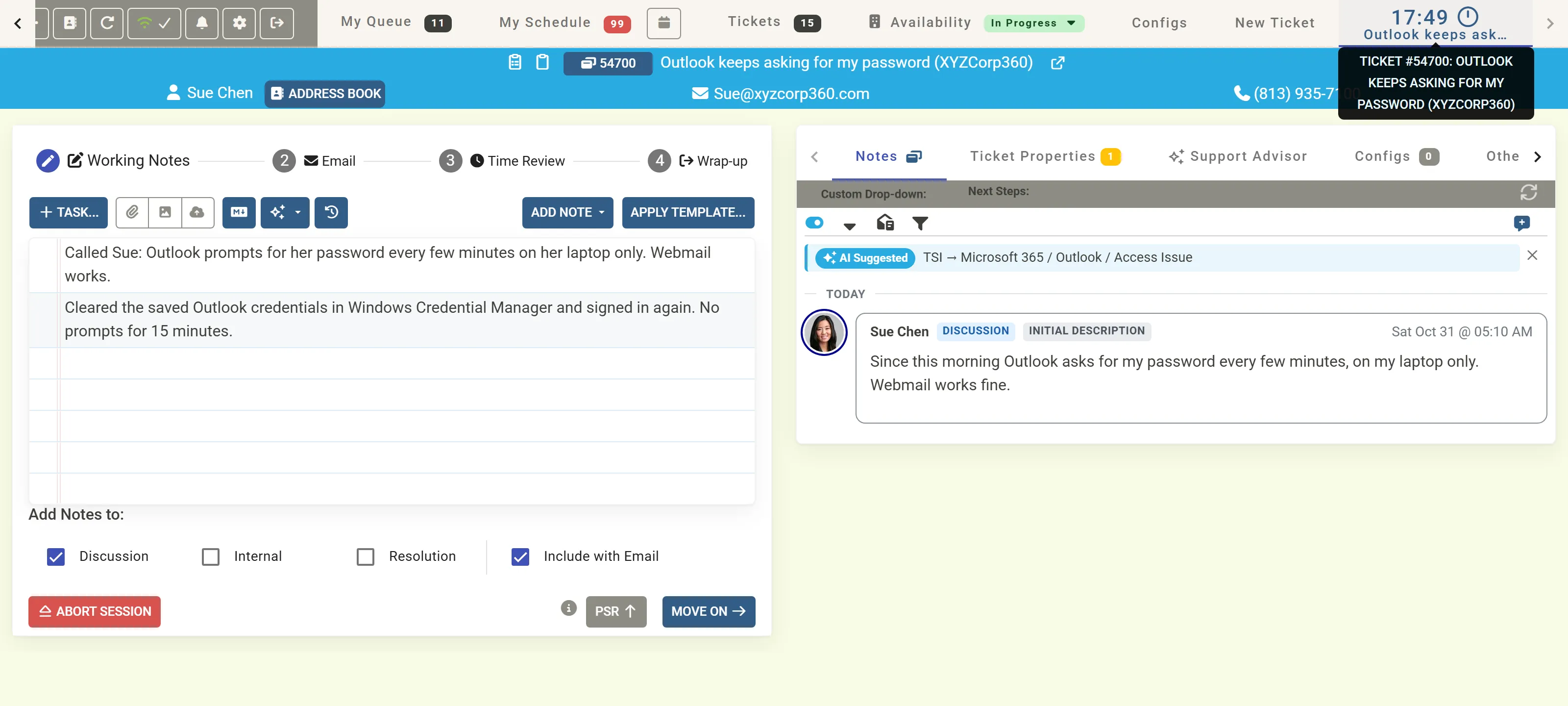
Click in the box under Enter working notes here… and type. Press Enter to finish a note and start the next: each note is a line of its own, so you can write as you go. Drag a note by the arrows on its left to reorder it.
Where the notes go
Section titled “Where the notes go”Under Add Notes to, tick what the time entry’s notes count as in ConnectWise: Discussion, Internal and Resolution. Your board sets the starting choice. Include with Email adds the notes to your email under a Notes heading.
A note’s own menu
Section titled “A note’s own menu”Hover over a note and click ⋯:
| Item | Does |
|---|---|
| Mark as Internal Note | The note is saved as an internal analysis note of its own, labelled INTERNAL, and stays out of the time entry’s notes. |
| Mark as Resolution Note | The note is saved as a resolution note of its own, labelled RESOLUTION. |
| Un-mark | Removes the mark. |
| Pin: Record to Each Time Entry | Includes the note in every time entry made on the ticket, for example so it shows with each one on the invoice. |
| Save as Standard Note | Saves the note’s text as a ConnectWise standard note, with a name of up to 50 characters, for this board or all boards. Offered when your ConnectWise security role may add setup tables; not for an empty note or one with an image. |
| Delete | Removes the note. |
When every note carries the same mark and there is nothing else on the time entry, the time entry itself becomes that kind (internal or resolution) instead. See How time entries are recorded.
The toolbar
Section titled “The toolbar”| Control | Does |
|---|---|
| Task… | Adds a ticket task. See Use tasks and ticket goals. |
| Paper clip, image | Attaches a document or an image to the ticket. You can also drag a file onto the third button. |
| Markdown | Shows how your notes will look, and a cheat sheet of the Markdown you can use: **bold**, lists and links. |
| AI (sparkles) | Create Ticket Goals, Polish Notes, and My Polish Notes rules…. |
| History | Include Historic Working Notes: shows or hides the working notes from earlier sessions on the ticket. |
| Add Note | Inserts one of your company’s standard notes. |
| Apply Template… | Applies a service template’s tasks to the ticket. |
Polish your notes with AI
Section titled “Polish your notes with AI”Choose Polish Notes from the AI button. Every note is polished at once, and a review shows each original beside its polished version: keep either, or edit them, before anything changes. The AI reads only your working notes’ text. My Polish Notes rules… lets you add rules of your own for the polishing. Ticket Automation’s technician tools explain the rules and which OpenAI key is used.
Good to know
Section titled “Good to know”- Once you have written a working note, Abort Session is no longer offered.
- Notes you write in the ticket summary’s Note, Internal and Resolution buttons are added to the ticket at once, outside your session.
- Under the One Ticket Method, the notes of a ticket put in *PSR automatically are not saved to ConnectWise until you return to it.