
Set Contact Types and custom fields
ConnectActive can classify contacts from the directory, so they do not drift from what the client’s directory says. There are three tools, all applied by each committed sync:
| Tool | Sets | From |
|---|---|---|
| Contact Mappings | Contact Types and any contact custom field | Membership of a group, license or OU |
| Map Contact Attributes to Custom Fields | Text custom fields | The user’s own directory values, such as department |
| Custom Field Mapping on an agreement mapping | One checkbox custom field | Whether the contact counts against that addition |
Contacts set to be ignored (the sync switch off) are left alone.
Contact Mappings
Section titled “Contact Mappings”- Open the company’s Settings and select Contact Mappings.
- Under Add New Contact Mapping, choose a group or license (or an OU, for Active Directory and Google Workspace) and click ADD MAPPING.
- In the mapping:
- Contact Types: choose Add as: Assign or Remove, then a Contact Type. Everyone in the group is given, or loses, that type.
- Remove all other existing Contact Types: the contact ends up with only the types the mapping assigns.
- Custom Fields: choose a field and the value to set (a list field offers its ConnectWise values), or Remove existing value to clear it.
- Perform and commit a sync. The Review Form lists the contacts under Contacts to Update Contact Types / Custom Fields, and hovering a badge says why, for example the group that set it.
Default Mapping for New Contacts (Configure Default Mapping) sets the Contact Types and custom field values of contacts ConnectActive creates. Existing contacts are not affected by it. Types it assigns take the place of those ConnectWise marks as default.
When mappings overlap, a group mapping wins over the Default Mapping, and of two group mappings that set the same type or field differently, the one added most recently wins.
Copy directory values into custom fields
Section titled “Copy directory values into custom fields”On the company’s Settings, open Map Contact Attributes to Custom Fields and choose a contact custom field for any of these:
| Attribute | Comes from |
|---|---|
| Department | Every source |
| Entra Object ID | Microsoft 365: the user’s object id |
| AD SID | Active Directory |
| Username | Active Directory’s sAMAccountName, Microsoft 365’s mail nickname, or the Google primary email |
| User Principal Name | Active Directory or Microsoft 365 |
| Office Location | Microsoft 365 |
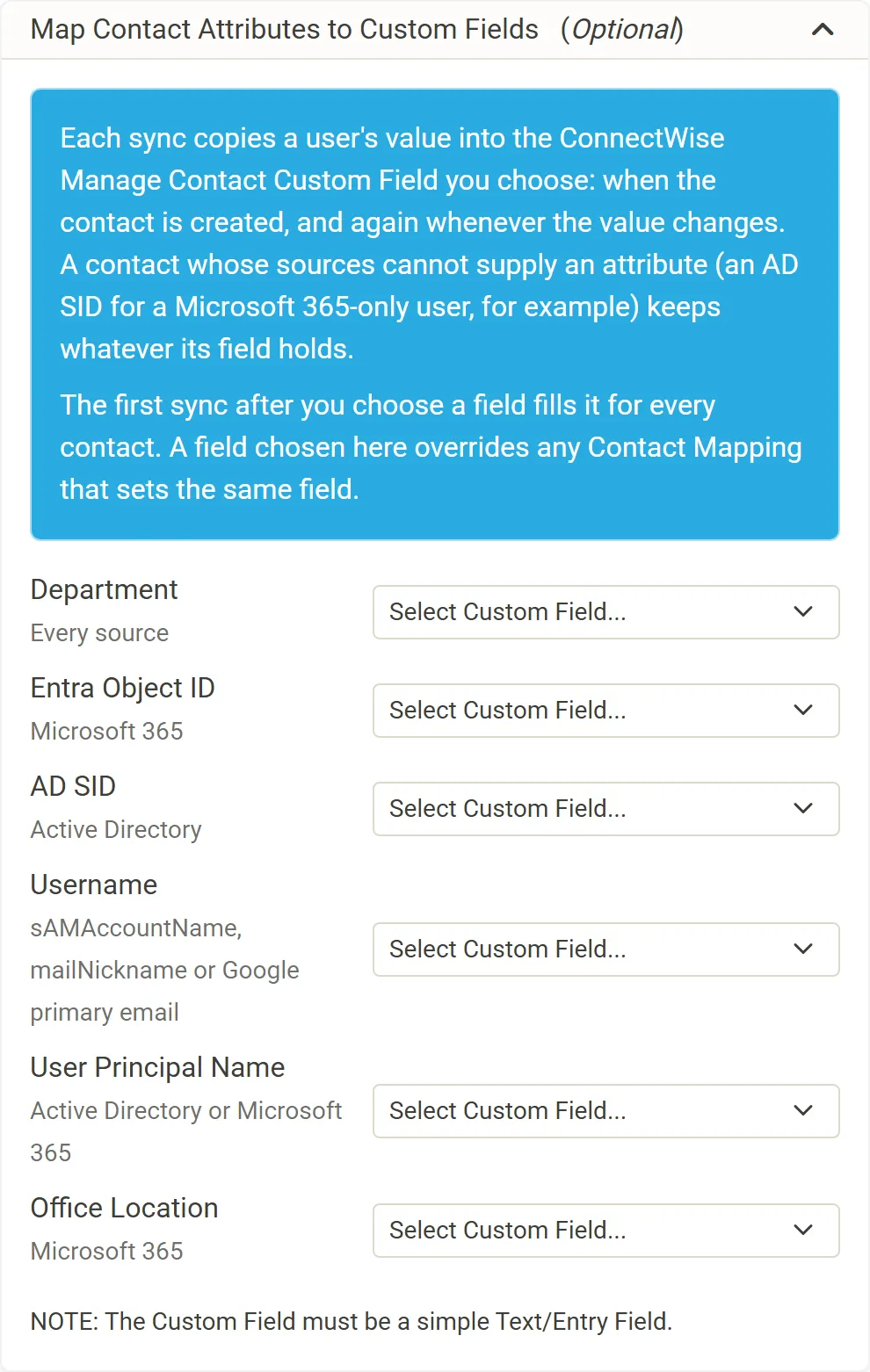
- The field must be a Text custom field with entry method Entry Field; only those are offered, and each field can hold only one attribute.
- The choice is saved at once. The next sync fills the field for every matched contact, and later syncs write it when the value changes. A change of letter case alone is not written.
- An attribute the user’s sources cannot supply (an AD SID for a Microsoft 365-only user) leaves the field as it is. An attribute the source supplies empty clears the field.
- An attribute wins over a Contact Mapping that sets the same field; the card warns about the overlap.
- Emptying a selector stops the writes; values already written stay.
For a company that syncs both Active Directory and Microsoft 365, Entra Object ID is the Microsoft 365 id and AD SID is the Active Directory SID.
Tick a checkbox for covered contacts
Section titled “Tick a checkbox for covered contacts”On an agreement mapping, Custom Field Mapping (Optional) links a ConnectWise contact Checkbox custom field to that mapping. Contacts counted against the addition have the field ticked, and the company’s other contacts have it unticked. See Mapping options.