
Set your preferences
Click the gear in MTX’s toolbar to open MTX Preferences. Each change applies at once and is kept for you. Every setting, with its default, is listed in Member settings.
Display
Section titled “Display”- Switch to Dark Mode or back to light.
- Compact tabs shows MTX’s own tabs (Queue, My Schedule, Tickets, Availability, Configs, New Ticket and Travel) as icons, with their counts and badges, on every screen size. That leaves room for the tabs of the tickets you are working and their timers.
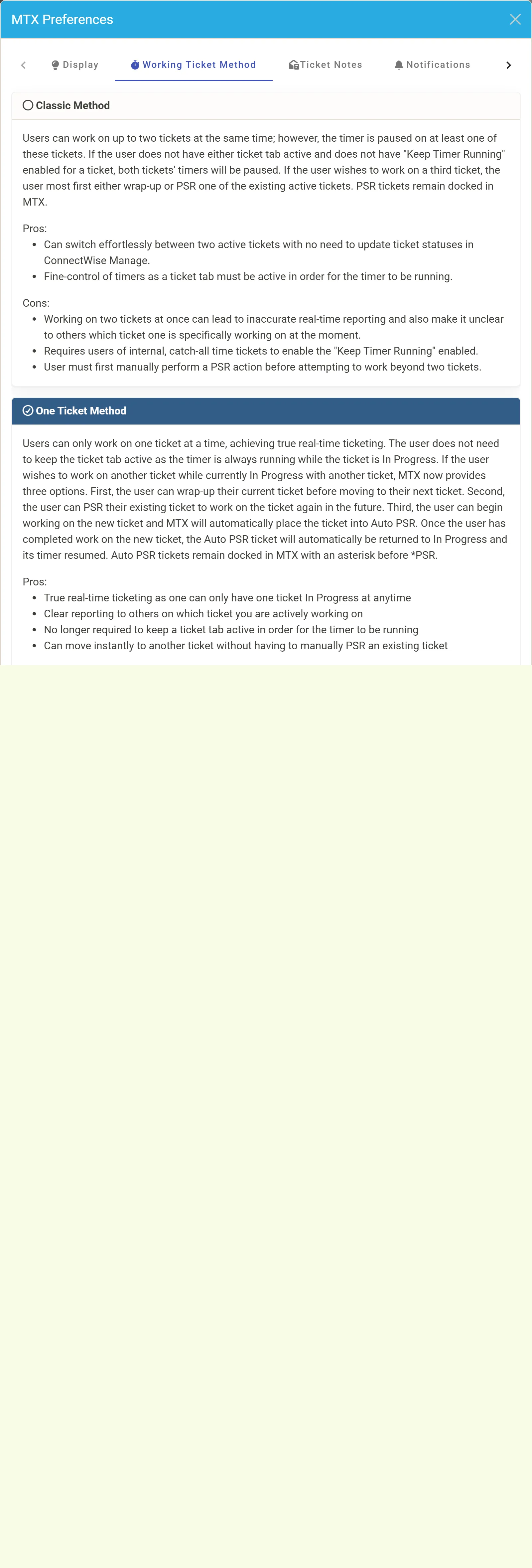
Working Ticket Method
Section titled “Working Ticket Method”- Classic Method or One Ticket Method: see Start and stop work. Your administrator may have chosen it for everyone.
- Resume Auto PSR tickets automatically, under the One Ticket Method: untick it to keep a ticket in *PSR until you click its tab.
- Manage Schedule Records: MTX creates and closes the schedule records of your sessions for you. Untick it to manage them yourself.
Ticket Notes
Section titled “Ticket Notes”Open email notes in Text View: email notes open in Email View, showing the original email, unless you tick this. Each note’s own Email View / Text View switch still changes that note.
Notifications
Section titled “Notifications”- ALL (the default): customer replies and in-house updates for every ticket you are assigned.
- LIMIT: only for the tickets you are assigned with a dated schedule record, or that you are assigned and no one has a dated schedule record for.
- Force Overlay Mode: on a wide display, show notifications over the page instead of in a column of their own.
- Silence for today and Disable Notifications.
Time Zone
Section titled “Time Zone”Shows your ConnectWise time zone and the one your schedules are shown in. Your administrator sets each member’s time zone in ConnectWise.
Global Settings
Section titled “Global Settings”Links to your company’s MTX settings, for administrators: see Set up MTX for your company.