
Set up time entries
MTX writes a technician’s time entries in ConnectWise for them when they wrap up, put a ticket in PSR or send an email (how). The Time Entries form decides which work types and roles it uses and what goes into each entry. You need Nilear’s Admin access level.
Open Settings, then My Tickets, at app.nilear.com. The first form is Time Entries.
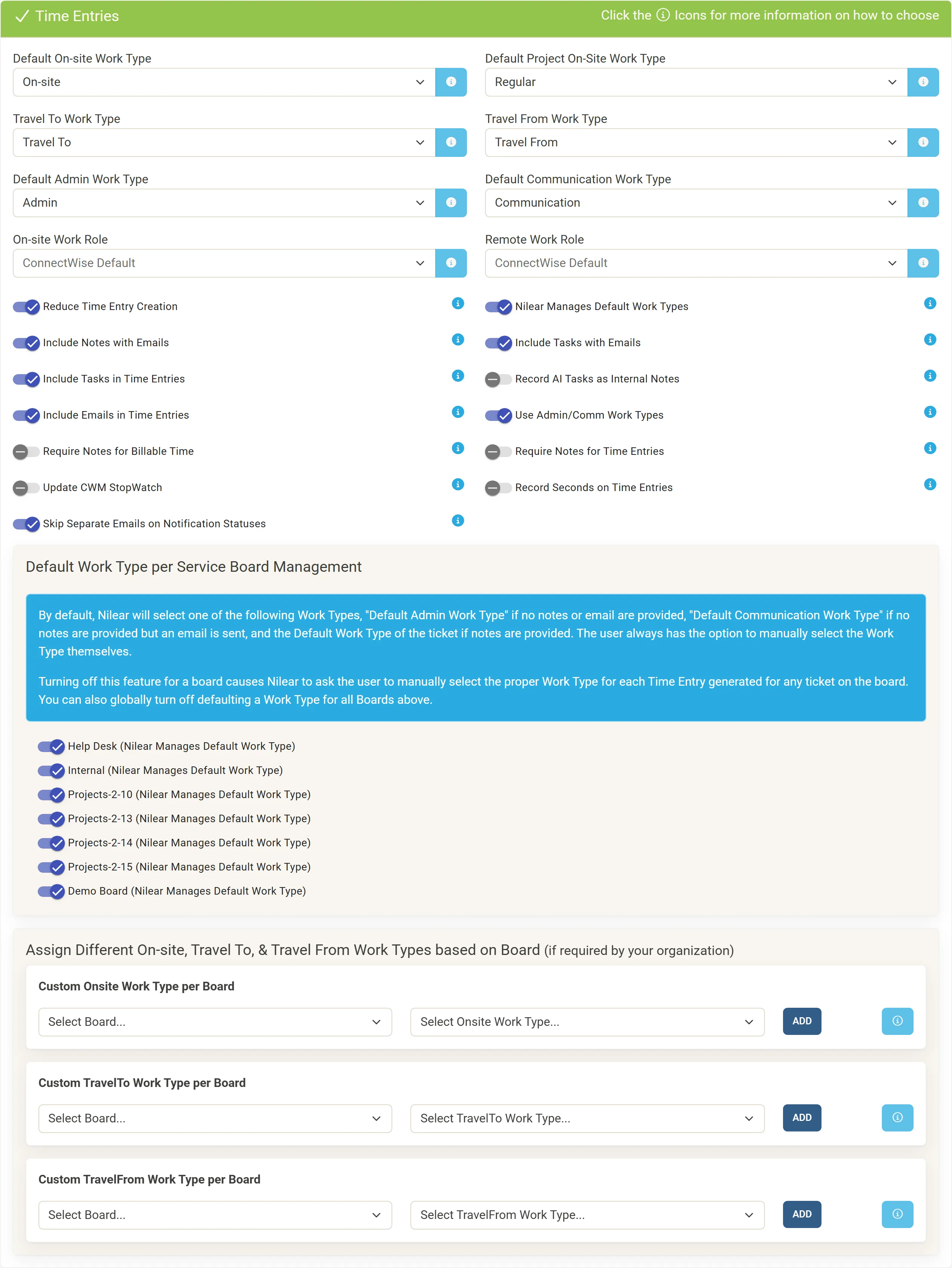
Work types and roles
Section titled “Work types and roles”| Field | Required | Used for |
|---|---|---|
| Default On-site Work Type | Yes | Time entries for on-site work. |
| Default Project On-Site Work Type | No | On-site work on project tickets. Empty means the same as the on-site work type. |
| Travel To Work Type | Yes | Travel to a client. If you do not tell travel and on-site work apart, choose your on-site work type. |
| Travel From Work Type | Yes | Travel back from a client. Nilear suggests a “Travel From” work type whose rate type is Custom with rate, minimum and maximum hours of 0.00. |
| Default Admin Work Type | Unless Use Admin/Comm Work Types is off | Internal, administrative work: a session with no notes and no email. |
| Default Communication Work Type | Unless Use Admin/Comm Work Types is off | A session in which only an email was sent. It can be the same as the admin work type. |
| On-site Work Role, Remote Work Role | No | Leave ConnectWise Default to use each member’s own default work role. |
How MTX picks the work type
Section titled “How MTX picks the work type”With Nilear Manages Default Work Types on, MTX picks the work type itself: the admin work type when there are no notes and no email, the communication work type when an email was sent but there are no notes, and the ticket’s own default work type when there are notes. The technician can always choose another.
- Turn it off to make every technician choose the work type for each time entry.
- To make technicians choose only on some boards, turn a board off under Default Work Type per Service Board Management.
- Turn off Use Admin/Comm Work Types to always use the ticket’s default work type, whatever the work.
Under Assign Different On-site, Travel To, & Travel From Work Types based on Board, choose a board and a work type and click ADD when a board uses its own on-site or travel work type.
What goes into a time entry
Section titled “What goes into a time entry”| Switch | On means |
|---|---|
| Reduce Time Entry Creation | One time entry per ticket, per technician, per day, except when a new session starts after completing the ticket or sending an email. Off: a new time entry for each MTX session. |
| PSR Continues Time Entry (shown while Reduce Time Entry Creation is off) | Returning to a ticket from PSR adds to the earlier time entry. Off: a new time entry each time. |
| Include Notes with Emails | Discussion and Resolution notes are added to the bottom of a drafted email. |
| Include Tasks with Emails | Notes of completed or failed tasks are added to the bottom of a drafted email. |
| Include Tasks in Time Entries | Notes of tasks the technician completed go into the time entry’s notes. |
| Record AI Tasks as Internal Notes | Tasks Nilear AI creates (Create Ticket Goals and Support Advisor) start marked Internal, so they are saved as internal ticket notes and left out of the time entry and emails. |
| Include Emails in Time Entries | The drafted email is included in the time entry. Off: it is saved as a ticket note instead. |
| Require Notes for Billable Time | A technician cannot wrap up a session that saves a billable time entry without notes. |
| Require Notes for Time Entries | A technician cannot wrap up a session that saves any time entry, Do Not Bill and No Charge included, without notes. |
| Update CWM StopWatch | Work on Ticket also stops, pauses and resets the technician’s ticket stopwatch in ConnectWise. Turning it on needs Add, Edit, Delete and Inquire set to All on Stopwatch, in the security role of the ConnectWise API member whose keys your company gave Nilear. |
| Record Seconds on Time Entries | Start and end times are recorded to the second instead of the minute. ConnectWise shows minutes but counts the seconds in the hours. |
| Skip Separate Emails on Notification Statuses | MTX sends no separate email when the status chosen already notifies the customer in ConnectWise. |
For the notes requirements, internal notes do not count, and an email counts only when it is included in the time entry. PSR is never held up by them.
The defaults of each switch are in Administrator settings.