
Read your scores
Open a ScoreBook
Section titled “Open a ScoreBook”In Score My Team, click Open ScoreBook on the ScoreBook’s card. You see the ScoreBooks you are in, or every ScoreBook if you are a Manager or Admin or your Any ScoreBook setting is Yes.
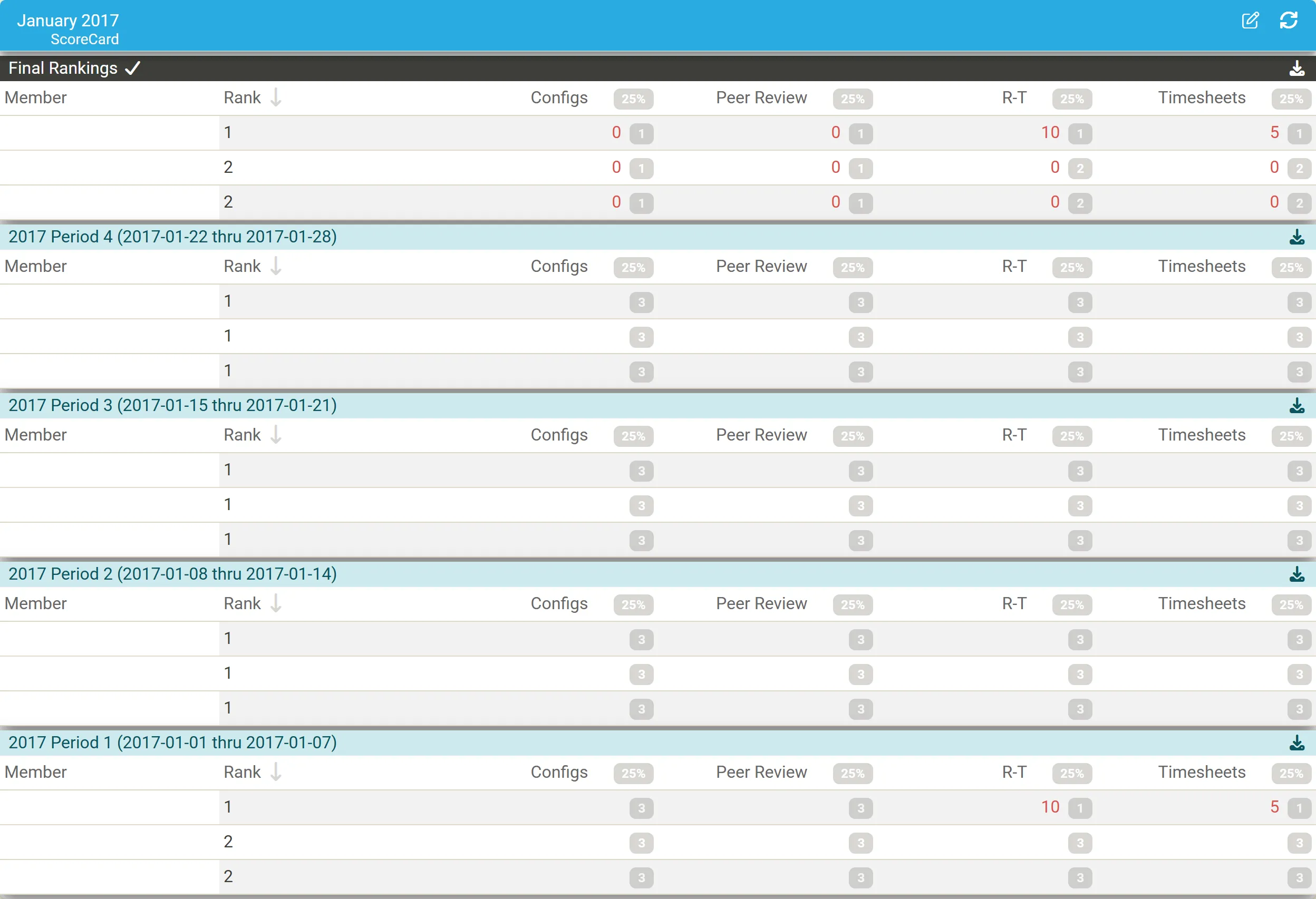
Each ScoreCard shows, newest first:
- Final Rankings (By Rankings) or Final Points (By Individual Metrics): the ScoreCard so far;
- one table per week, such as 2017 Period 4 (2017-01-22 thru 2017-01-28).
In each table:
| Column | Shows |
|---|---|
| Member | The member scored. |
| Rank or Total | Their overall place (By Rankings) or points (By Individual Metrics). |
| One per module | The member’s score in that module, shortened in the heading (R-T for Real-time Ticketing). The grey badge beside the heading is the module’s share; the grey badge beside a score is the member’s rank in that module. |
A score’s color is its grade against the Rocks: red Bad, amber Poor, blue Good, green Great. Point at a rank badge to see the thresholds. A lock means the week has not ended: until then you see only your own scores.
Click a column heading to sort by it. Click the download icon on a table to export it to Excel, and the refresh icon in the ScoreCard’s header to recalculate its scores. Load More ScoreCards shows older ScoreCards.
Open the report behind a score
Section titled “Open the report behind a score”Click a score to open the report it comes from. Real-time Ticketing opens the points of each ticket and the events behind them; the timesheet modules open the member’s Timesheet or Ticket Timesheet report:
- Score and Original Score: the points after and before deductions;
- Accuracy: the share of entries that needed no correction;
- Entries Total, Entries Modified, Modified Acknowledged, Entries Submitted Late;
- Hours, Hours Invoiced, Hours Billable, Hours NonBillable, and hours by company type, work type and board;
- each modified entry, with what changed: agreement, work type, billable, hours billed.
How points are earned and lost is in Timesheet scoring.
Acknowledge a correction
Section titled “Acknowledge a correction”If a time reviewer corrected one of your time entries, open your Timesheet report from the ScoreBook and click Acknowledge Modification(s). The deductions for the modifications are removed; the deduction for a late submission stays. Only the owner of the time entry can acknowledge it.
Analyse one ticket
Section titled “Analyse one ticket”Managers, Admins and members who may see any ScoreBook can see how Real-time Ticketing scored a single ticket:
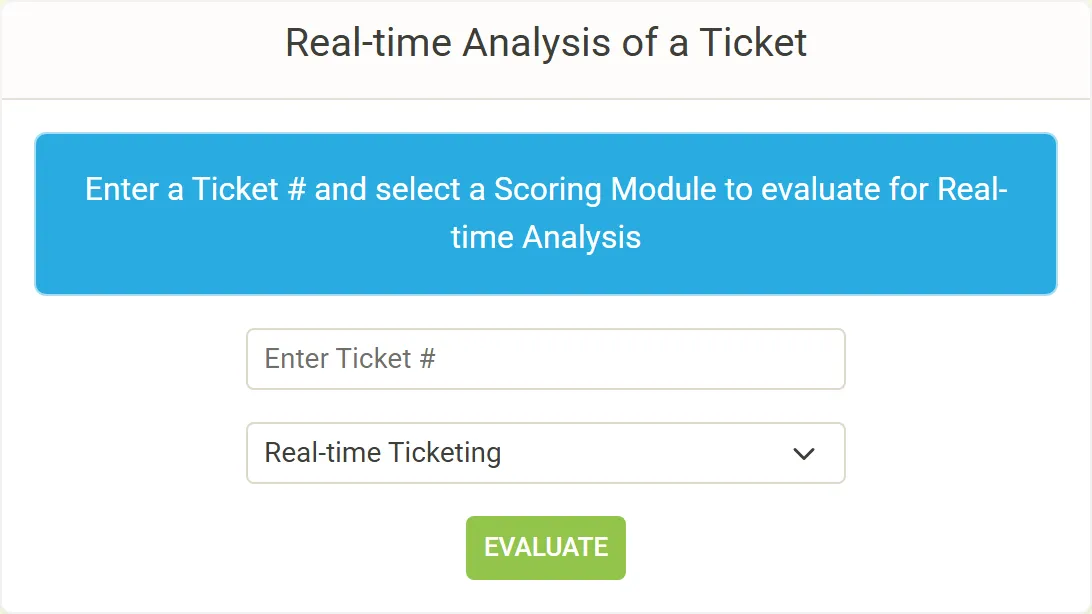
- In Score My Team, find Real-time Analysis of a Ticket.
- Enter the ticket number, choose a Real-time scoring module, and click Evaluate.
The page lists each event on the ticket, with the member who earned or lost the points, the points and the event, its variance, any configuration attached, and its time. Below it, the ticket’s Audit Trail shows the status changes and time entries the events were worked out from.