
Use the Tickets tab
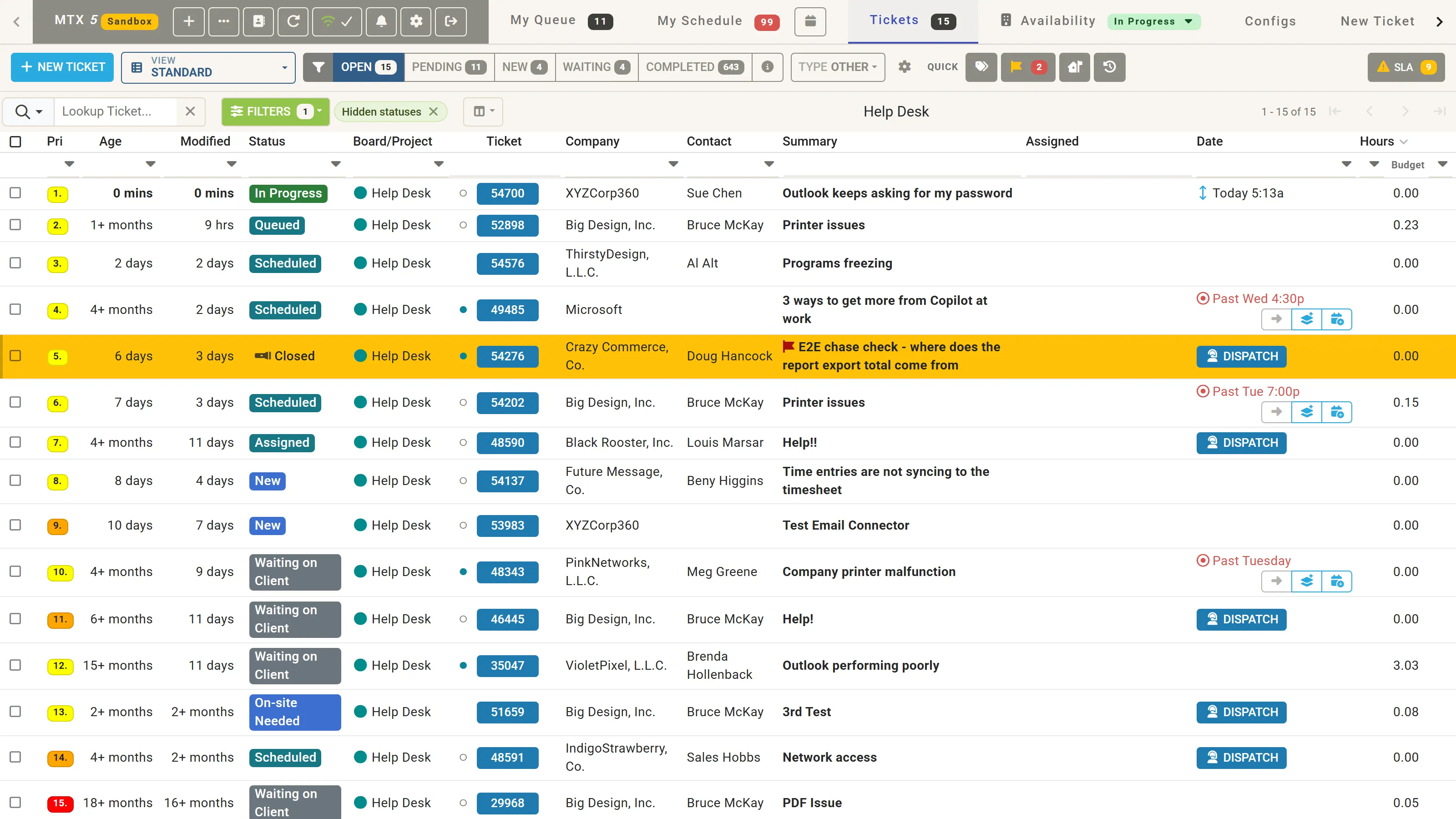
The Tickets tab lists the tickets on the boards you chose. Its label shows how many tickets are listed.
Choose a view
Section titled “Choose a view”Open View to choose what the list shows:
| View | Lists |
|---|---|
| Standard | The tickets on your boards, narrowed by the state, the type and your filters. |
| Ticket Search | A search of all tickets, beyond the ones MTX lists. See Search all tickets. |
| Notes/Time Search | Words found in the notes and time entries of every ticket. See Search notes and time entries. |
| My Queue | Your queue: see Work your queue. |
| Tagged | The tickets you tagged. |
| Customer Updated | Tickets a customer has responded on. |
| In-house Updated | Tickets with an in-house update. |
| Recent | Tickets you worked on recently, the latest first. |
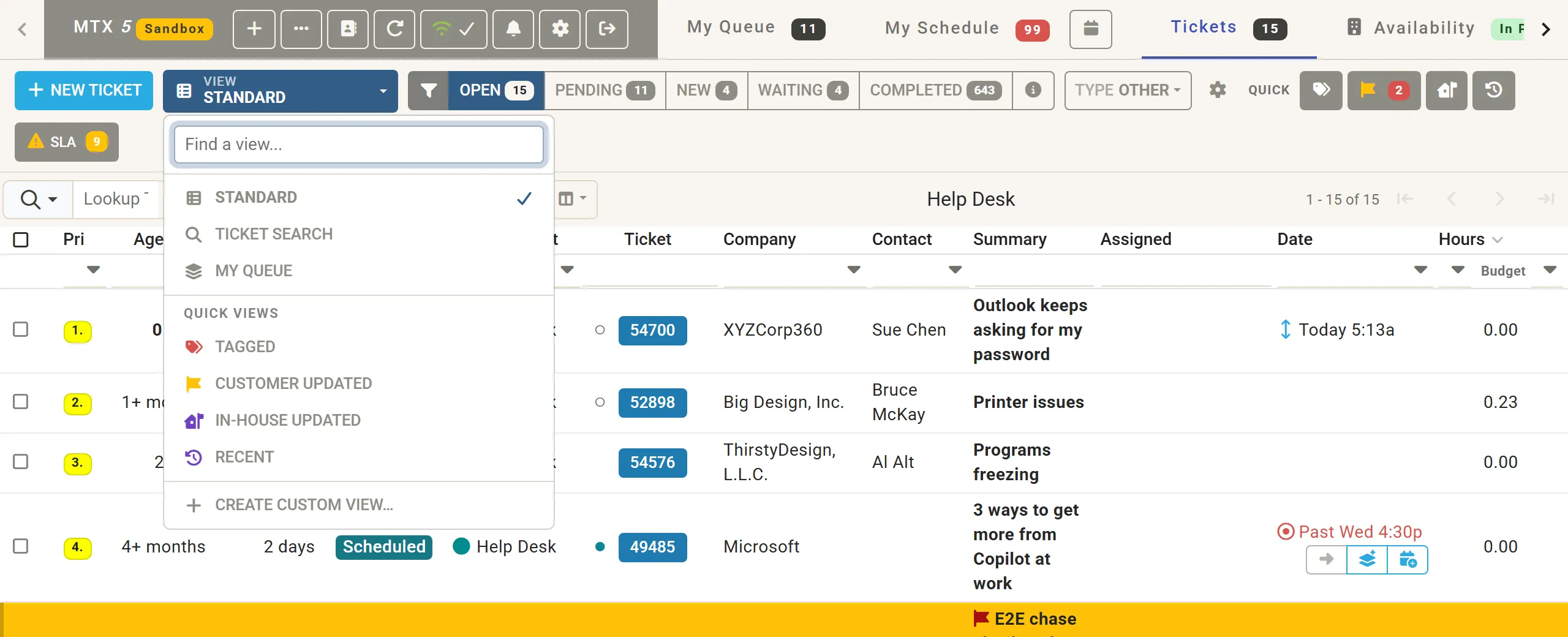
The four Quick views also have their own buttons beside Quick on a wide screen; click the active one again to leave it. MTX opens on the view you used last.
Describe your own view
Section titled “Describe your own view”Choose Create Custom View… and describe the tickets you want in a sentence, for example “tickets pending, or waiting but past due”. MTX shows the conditions it understood, in words, and how many of your tickets match. Refine it with another sentence, or remove a condition. You can also paste or drop a screenshot of ConnectWise’s Define a View window, or choose it with Use a ConnectWise screenshot…, and MTX turns its filters into conditions.
- A view can use status, state, board, priority, type, team, members, dates and flags, and the agreement name, territory, company ID, hours used, budget hours and ConnectWise’s SLA status.
- A view lists matching tickets from every board you can see, whatever board type you chose.
- A new view is private. Turn on Shared to list it for everyone in your company under Shared in your MSP. Only you can change, share or delete the views you made.
- Lock View keeps its conditions as they are; Unlock View lets you refine it again.
To build the view, MTX sends Nilear’s AI your sentence, the screenshot if you gave one, and your company’s lists (boards, statuses, priorities, types, teams, territories and members’ names). It sends no ticket, company, contact, note or time entry. The screenshot is not kept.
Search all tickets
Section titled “Search all tickets”Ticket Search searches all your tickets in ConnectWise, not only the ones on your boards. Type in the filter under a column title, or click Filters to open a panel above the results with every filter in one form:
- Summary, Ticket #, Company, Contact, Board, Status and Priority: the same filters as under the column titles. Type in either place and the other follows.
- Type, Owner and Assigned: only tickets of that type, owned by that member, or with that member among their resources. Owner is offered while Service or Projects is selected, not both.
- Entered and Updated: the days a ticket was entered or last updated, each a whole day in your time zone. Leave either end empty to search from or up to a day.
Press Enter or click Search to search; Clear empties the panel and the column filters. On a wide screen, the Updated column shows each ticket’s last update. MTX remembers, in the same browser, whether you left the panel open. While it is closed, Filters shows how many of its Type, Owner, Assigned and date filters are set.
Choose a state and a board type
Section titled “Choose a state and a board type”In the Standard view, one of the state buttons is always selected, each with its count:
| State | Counts |
|---|---|
| Open | Every ticket not completed. |
| Pending | Tickets not yet In Progress, and Waiting or Follow-up tickets whose scheduled or due date has passed. |
| New | New tickets. |
| Waiting | Waiting and Follow-up tickets. |
| Completed | Completed tickets. |
Type chooses the board type: Service, Monitoring, Project, Sales, Other or Custom. The gear beside it chooses which boards each type includes. The boards listed are named above the list.
Find a ticket
Section titled “Find a ticket”Type in Lookup Ticket… to narrow the list to tickets whose properties contain your text. A ticket number opens that ticket directly. When a few letters find fewer than five tickets, MTX offers to look up other tickets too. The menu beside the box can search the notes as well.
Act on several tickets
Section titled “Act on several tickets”Tick the box at the start of each row, or shift-click to tick a range. A bar replaces the lookup box with the number selected and the actions: Set Status, Add Resource, Add to Queue, and under More the rest (change the board, priority, source, service type or team, add an internal note, bundle or merge, remove from the queue, and delete where you may delete tickets). Where your company has turned off merging, the action is Bundle Tickets. Press Esc to clear the selection.
Keyboard
Section titled “Keyboard”| Key | Does |
|---|---|
| ↓ or J, ↑ or K | Move the highlighted row, onto the next or previous page at the edge. |
| Enter | Open the highlighted ticket’s summary. |
| W | Open the highlighted ticket and start Work on Ticket. |
| / | Go to Lookup Ticket…; Esc there clears it. |
| ? | Show the keys that work on the current screen. |
Keys act only outside text fields.
Other controls
Section titled “Other controls”- New Ticket opens the New Ticket tab.
- SLA shows how many tickets have SLA warnings, and lists them.
- Filters and Columns have their own pages.