
Add Members to a Queued Ticket by Hand
A queued ticket can now go to the members you choose, not only the ones its targeting rules match. Nobody is assigned in ConnectWise Manage.
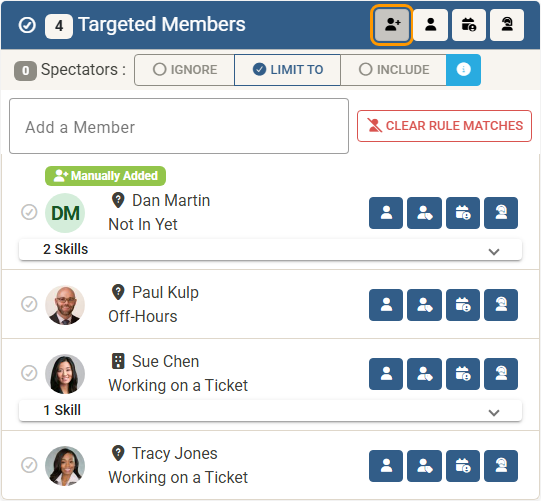
- Add a member. Open the ticket’s Queue window by clicking the queue icon in the ticket’s Assigned column. In the Targeted Members header, click the person-with-a-plus button (the first of the four buttons on the right, outlined in the picture below). Then type a name in Add a Member and pick anyone. They are targeted even if the rules don’t match them, listed first, and labeled Manually Added. To remove them, click their check circle.
- Only the members you pick. Clear Rule Matches, next to the Add a Member box, unchecks everyone the rules matched and keeps the members you added. Someone who joins the board team later isn’t targeted either. Checking a rule match again adds them by hand.
- Back to the rules. Re-enable All Members (the circle left of Targeted Members in the header) targets the rule matches again and keeps the members you added. Reset to Rules removes them as well and goes back to the targeting rules alone.
If Spectators is set to Limit to and the ticket has spectators, only the spectators are targeted, so members can’t be added. In the Tickets list, the Assigned column names the members you added: on their own after Clear Rule Matches, or after the rule, as in “Internal Team + Dan”. A plus-circle icon marks these tickets.