Choose What a Ticket Template Changes Before You Apply It
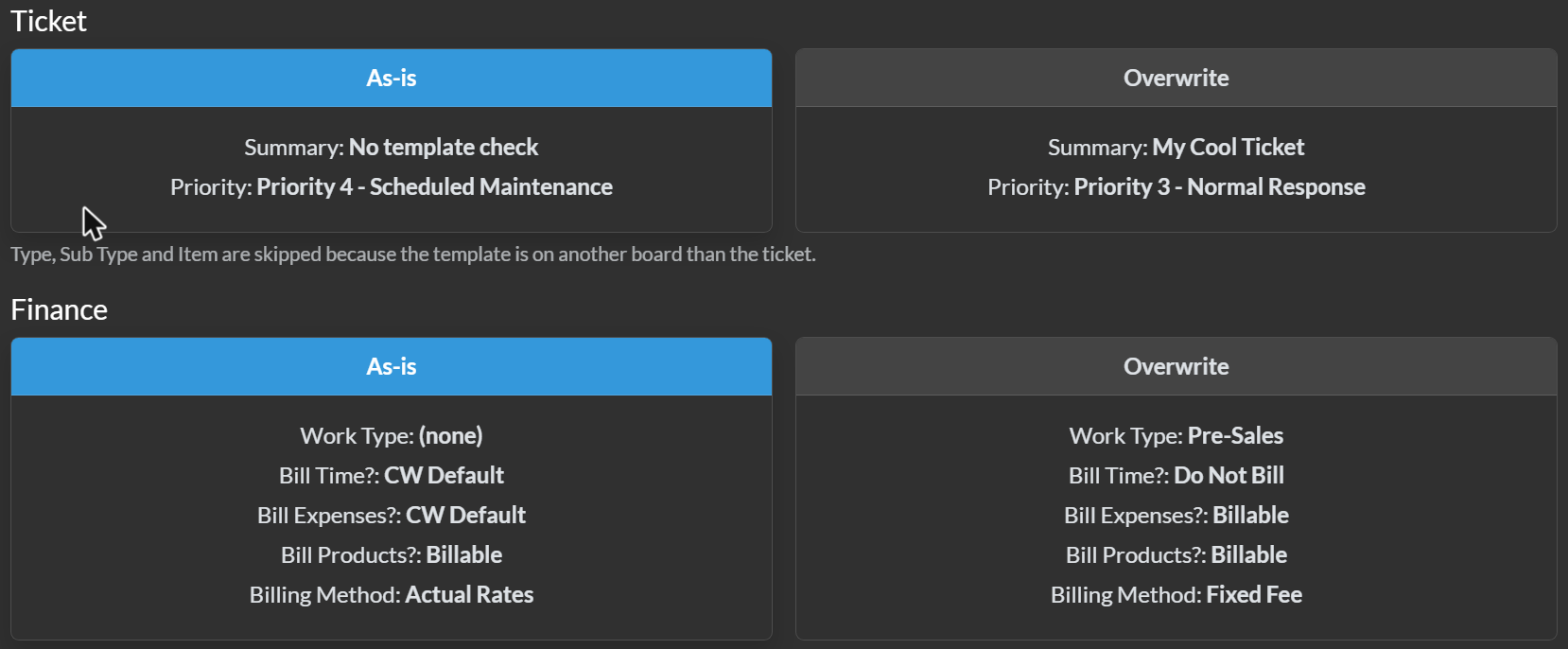
When you apply a Ticket Template to a ticket in MTX, you now see what it would change before anything is written.
- You can now start it from the ticket’s … menu (Apply Template…) as well as from the Tasks tab.
- Pick a template and a review screen opens. The ticket’s current values (As-is) sit beside the template’s (Overwrite) for the Summary, the Priority, the Type, Sub Type and Item, and Finance (Work Role, Work Type, Bill Time, Bill Expenses, Bill Products and Billing Method). Each is chosen on its own, so you can take the template’s Type and keep your own Summary. Click a card to choose it.
- Nothing is overwritten unless you choose it. A group starts on Overwrite only when the ticket has no value in it yet (so the Summary and Priority start on As-is); otherwise it starts on As-is.
- The template’s problem text and internal analysis each have an Appending / Not Appending switch, and both start on Appending.
- The template’s tasks and attachments are always added.
- Type, Sub Type and Item are only offered when the template is on the ticket’s board. If it is not, the review says they are skipped.
- If the template changes nothing on the ticket and has no notes, the screen just says so and applying adds the tasks and attachments.