Split Ticket with AI
Split Ticket with AI
Introducing AI-Powered Ticket Splitting – when a single ticket contains multiple unrelated requests, let AI automatically break it into separate, focused tickets so each issue gets the attention it deserves:
- Intelligent Detection: AI analyzes the ticket conversation and identifies distinct requests that should be tracked separately
- Summary Refinement: When the original summary no longer fits the remaining work, AI suggests an updated summary for the existing ticket
- Full Review: Preview every new ticket — summary, initial description, and work already performed — before anything is created
- Inline Editing: Edit any field in the review directly to adjust AI suggestions to your liking
- Selective Splitting: Ignore individual suggested tickets you don’t want to create
- Bulk TSI Assignment: Assign Type, SubType, and Item across all new tickets in one click using AI suggestions
- AI Summary Note: After tickets are created, AI drafts a summary of what was split off and what remains — save it as a note on the original ticket or use it to draft a client email, directly from the success screen
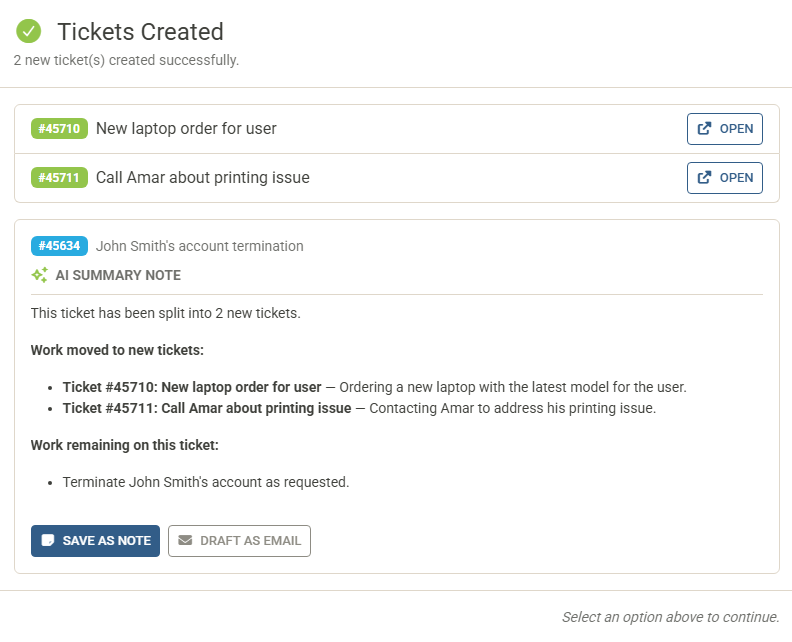
Available from the ticket toolbar. Click the Split button to get started:
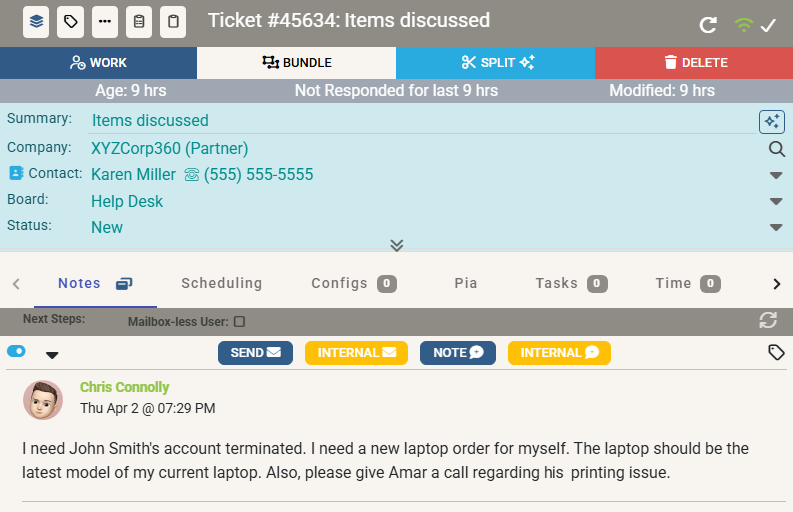
After clicking Split, the AI analyzes the ticket conversation and presents a Split Ticket Review showing the suggested summary for the existing ticket and each new ticket to be created. You can edit any field or ignore tickets you don’t need:
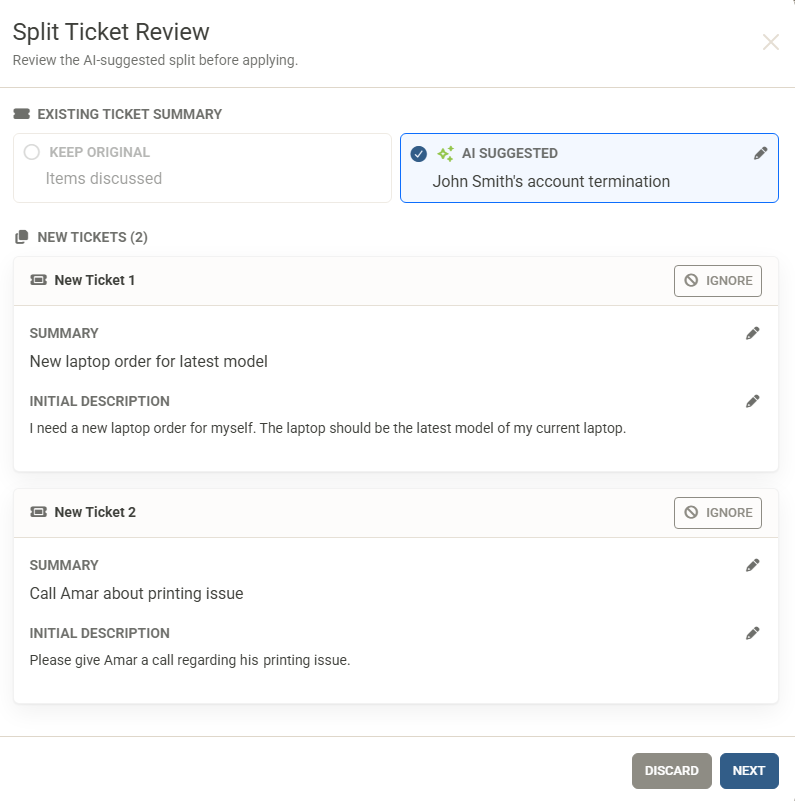
Walk through each new ticket to assign its properties — board, status, contact, site, and more. Use Suggest TSI (All Tickets) to let AI classify the Type, SubType, and Item for every new ticket simultaneously:
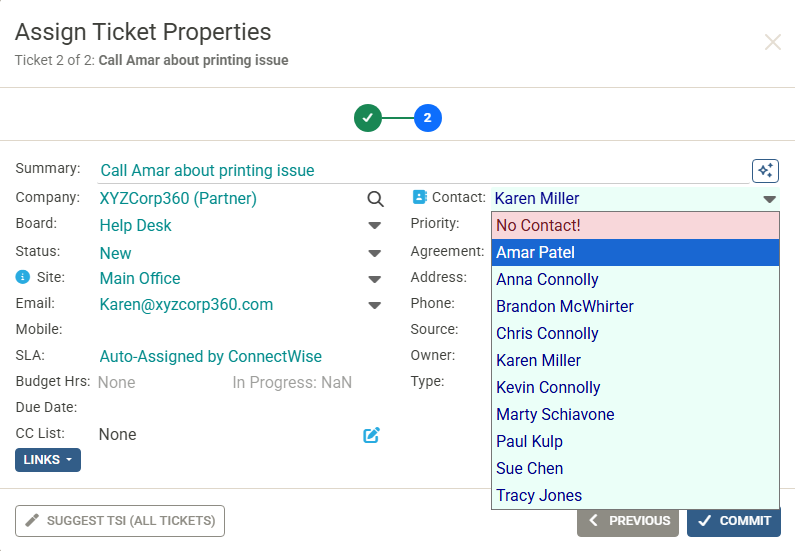
Once committed, all new tickets are created in ConnectWise. The success screen lists every ticket created — open any one directly with a click. At the same time, AI drafts an AI Summary Note for the original ticket, capturing what work was moved to new tickets and what remains. Save it as a note on the ticket or use it to draft a client email — without leaving the screen: